Software Release Notes
The latest functionality in turbomachinery design and manufacturing
Developed a link mechanism, similar to the existing LABY3 seal code previously linked, for the HCOMB seal code. This development included the user interface, help utilities, and import function of the seal stiffness and damping coefficients.
Implemented a linked function ROTLAT (for rotor dynamics) software package.
The file conversion feature can read a basic Dyrobes model file (*.rot file) and output an equivalent ARMD model file (*.roi file). The basic features of a Dyrobes model file will be accounted for, including the following: Unit system, Materials data, Shaft Elements, Discs, Bearings, and Unbalance.
TORSION 2025.2 permits the analyst to evaluate the potential and kinetic energy distributions as part of its torsional twist mode shape presentation. The computed potential and kinetic distributions are tabulated in the natural frequency solver's (TORNAT) text output file. These data are also included in a newly-created graphical output file, which can be visualized in a bar chart format using ARMD's ARMDGRAPH graphics utility.
The new interface for designing volute geometry includes an option for a fresh approach for building 3D volute geometry. This is a beta feature and we look forward to your feedback. This currently works for symmetric and overhung templates.
Options are now relocated to a context menu that activates upon selecting a specific window type. The intent is to provide an intuitive and efficient pathway for users to access relevant options. These Context menus aim to increase click-through efficiency and also provide the full range of features for each context.
Expanded the capability with the throughflow design mode in the areas of the design method and also the target options. The user can now modify multiple blade rows with multiple exit target options for pressure ratio goals, total pressure goals, and flow angle profiles.
Enabled stepped seals in flow paths not directly associated with the mechanical backface or shroud of a rotating geometry. Users are now free to add step seals to any geometric segment, allowing for greater freedom in design. Additionally, enabled fillets in stepped labyrinth seals as well as numerous stability improvements to secondary flow path manipulation and meshing.
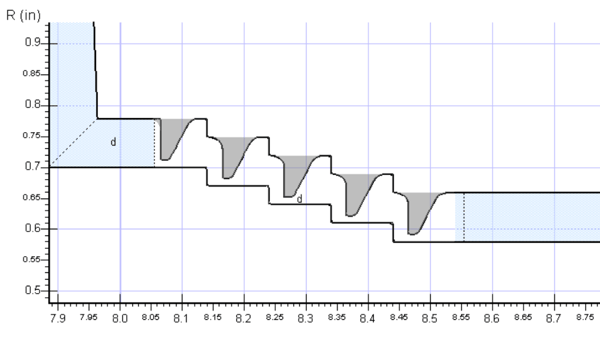
Improved axial coordinates matching for the intersection points of the blade LE and TE with the flowpath contours during Agile transfer between Axial and AxCent to get better correspondence between the preliminary and 3D geometries, and the flow path modeling.
Loss models, geometry, and flow data in Axial Solver are exposed to the embedded Python scripts. These include models for: optimum incidence, incidence loss, profile loss, secondary/End-wall losses and End-Wall Blockage, trailing edge loss, shock losses, wetness loss, disk friction loss, patrial admission losses, stalled flow condition models for turbines and compressors.
PbCFD and Fine Turbo have been updated to enable step seals in secondary flow paths. Default mesh values have been updated for branches to better mesh geometries with secondary flow paths. Improvements to geometry generation for secondary flow paths and seals increase the success rate for CFD with secondary flows.
Expanded the post-processing to include slices, contours, run table, and streamlines
Expanded the post-processing to include slices, contours, run table, and streamlines
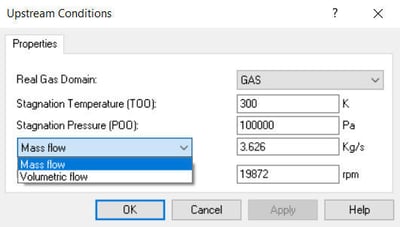
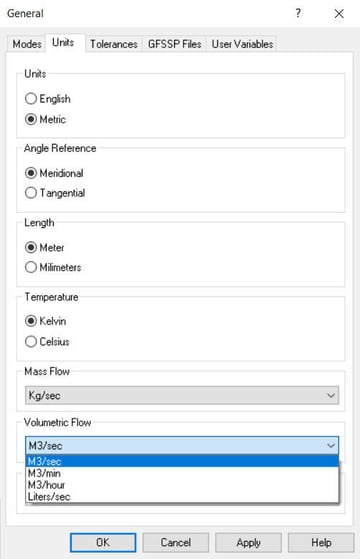
The user selections for volumetric flow and mass flow have been separated. Users select entry types during units selection, and that parameter selection is carried through the program. This allows for more accurate calculation, decreases the potential for error, and enables further flexibility for mixing and matching flow rate units.
See further updates shared by our radial meanline programs.
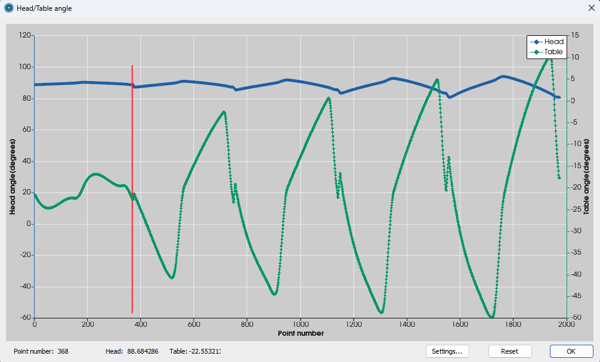
A new plotting tool has been added to the simulator to help with analyzing key process parameters including linear and rotary axes motion, drill/drag angle, surface contact angle and feedrate. The plots are synchronized with the simulation playback and offer a new way to identify and asses areas of interest. Click anywhere in the plot to jump to that point in the simulator. Visualization settings such as colors and point display can be customized. To access these plots, click the Analyze button in the Simulation window and select the parameter you would like to analyze.
A new dialog has been added to make point filters such as axis reversals more accessible and flexible in the toolpath simulator. You can now filter for multiple parameters at once and customize colors individually for each filter. To access these filters, click the Display button in the simulation dialog and select Filter points.
3+2 roughing operations now have more options for the input stock. You can now use the rest stock from the stock chain as your input stock. The Limit-to-pocket option allows you to combine the functionality of the pocket stock with any other stock model to contain the roughing operation to the pocket between the blades. Rest stock will automatically be calculated as needed. These new options can be found in the Stock group Geometry tab.
Exit feed distance allows you to easily define separate feed distances for the retract and approach moves. This can be found in the Distances group on the Parameters tab.
A new Always start on same side option has been added to 5-axis roughing operations. Previously, when using an odd number of width passes combined with the In at trail roughing methods and Reduce air cuts between depths, the path would eventually end up entering the depth on the leading edge side for every other depth. This new option prevents this from happening to allow for more consistency in your toolpath and process.
MAX-SI Box perimeter toolpaths now support partial box passes instead of always cutting the full perimeter. This allows for reducing the cycle time by applying a more direct transition move between the start and stop points. To access this, select the Box perimeter method on the Method tab and then click Advanced on the Passes tab.
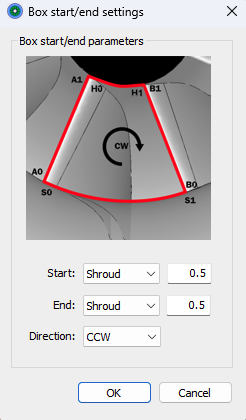
A new blending option has been added to MAX-SI Box perimeter toolpaths that allows for blending in/out along passes when moving across the pocket. This pairs nicely with the new partial box passes for blending between toolpaths such as for fillet reduction strategies.
-png.png?width=440&height=328&name=image%20(1)-png.png)
A new Reduce edge motion option has been added to the Barrel tool orientation dialog box to reduce vector motion around blade edges. By default the barrel tool swings in a plane perpendicular to dU and near the hub that plane has to re-orient suddenly while going around the edge. With this option enabled, the plane is based on dW and it is more consistent going around the edge.
A new interface for collision checking is now available on the Surface mill Orientation tab when a configuration is not selected. This allows for more flexibility by allowing you to select a part, fixture, and CAD layers to use for collision checking independently instead of always including all geometry defined in the machining setup.
In addition, the efficiency of the collision checking algorithm has been improved to reduce calculation time.
MAX-PAC now supports the customization and generation of main programs. A new Main program configuration dialog allows you to select which operations to include in your main program and to add loops to iterate over them. To get to this dialog, expand the Properties node in the Machining setup tree and double-click on Main program. To customize the format of the main program output, click on the Format… button on this dialog. This allows you to define how to format each block including the header, footer, and subroutine syntax. Macro variables allow you to build a flexible main program that includes parameters such as tool number, tool offset, and file names.
Nose endmills now support a corner radius between the main arc and the flank of the tool.
The Loft – Create surface tool has been updated to include new functions such as adding/removing curves, reversing curves, and previewing the surface.
The Guided patch curves tool has been updated to make it more robust and less sensitive to the order of curve selection or their direction.
Defining a fillet using curves at the base of the fillet has been updated to include auto-sorting so that the curves no longer need to be selected in order.
New arguments have been added for running MAX-PAC from the command line. LOADDATA will force the reload of tabular data files like when you check the “Force to re-load all definition files” option on the Import external files… dialog. WRITEMODEL will write out the working model in IGES, STEP, and BREP formats, like if you copied all the trimmed CAD surfaces from the working model and saved them to a CAD layer prior to exporting. EXPORTFILES is the same as right-clicking a configuration and selecting 'Export files'.
A new Properties node has been added to the Machining setup tree in the CAM window to bring more visibility to key settings. This node contains things such as Part, Fixture, APT settings, and others which are typically defined at the start of a project. Double-click on any of the items in this node to open a dialog and edit the selected settings.
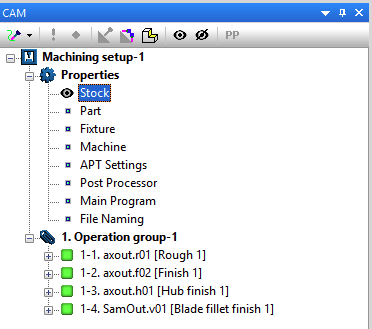
Part, stock, and fixture models can now be shown or hidden using the show/hide toolbar options instead of the right-click menu. Click on the node in the Properties group and then click the show/hide buttons in the toolbar. An Eye icon indicates if the model is currently shown/hidden.
The Simulation settings dialog has been renamed Machining setup settings to clarify that these settings can be used in other parts of the program such as 3+2 input models, or collision checking during toolpath calculation.
Help documentation has been updated to HTML5 format. This allows for improved search functionality, viewing multiple pages at once, and allows for support of online help in future versions which can be updated more easily to ensure the highest quality help content. All help content can still be accessed via the Help menu or F1 for context help, but the content will now open in the default web browser.
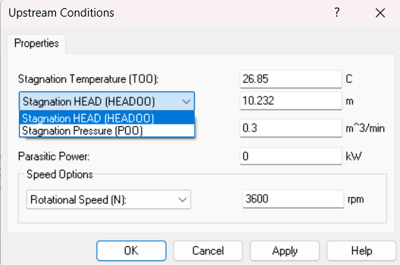
The user selections for pressure rise and head rise are now separated. Users select entry types during units selection, and that parameter selection is carried through the program. This allows for more accurate calculation, decreases the potential for error, and enables further flexibility for mixing and matching flow rate units.

This release contains a new Python API for PUMPAL’s design mode. Dedicated documentation and example scripts included. This work will form the basis for a Python API that more broadly covers our product offerings, allowing users additional customization and flexibility.
See further updates shared by our radial meanline programs.
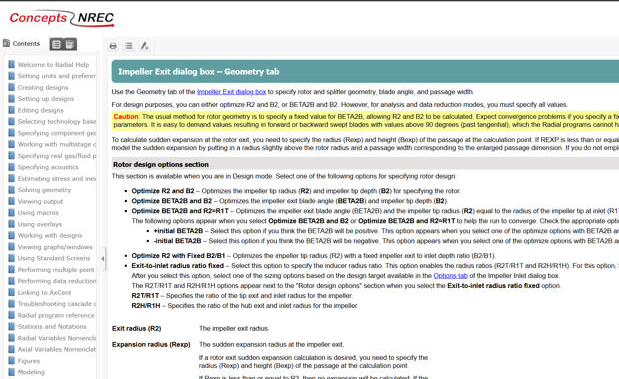
This release introduces updates for F1 help in our radial meanline programs. The content and links from dialogs will be preserved with an updated form factor. Help pages will launch in a browser window and enable the display of multiple help windows simultaneously, and improved search functionality.
As part of refreshing the UI of our software programs, there are new individual software splash screens when launching the software as well as the software icons themselves.
There are also new updated toolbar icons within the radial meanline programs and TurboOpt II. Primarily a UI change, the functionality remains the same as previous. Hover over the icons to view their tooltip.
Finally, there are updates to the plotting style in COMPAL, PUMPAL, and RITAL. Subtle grid lines, standardized font choice, and line plot colors chosen for accessibility and for better differentiation are among the improvements.
All feedback is welcome!
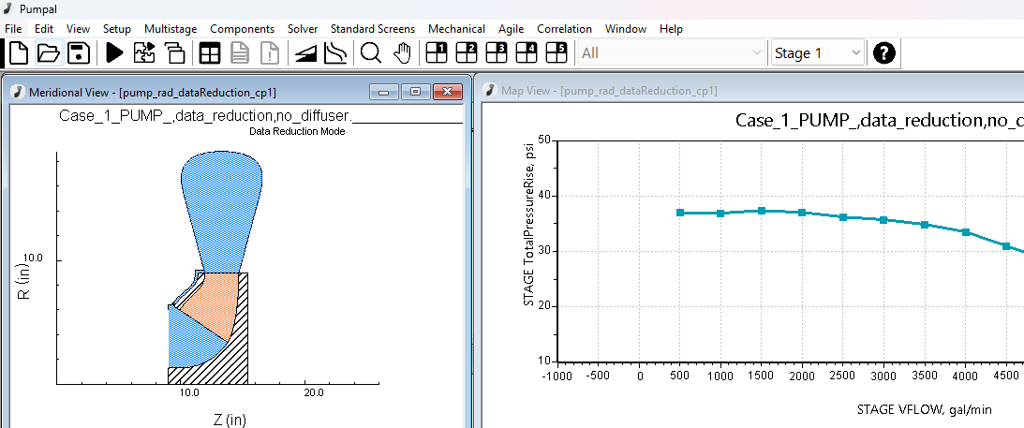
Additions to the 2025.1 introduced the “laby detailed” seal model to accommodate instances of reverse flow and multiple seals in COMPAL/ PUMPAL.
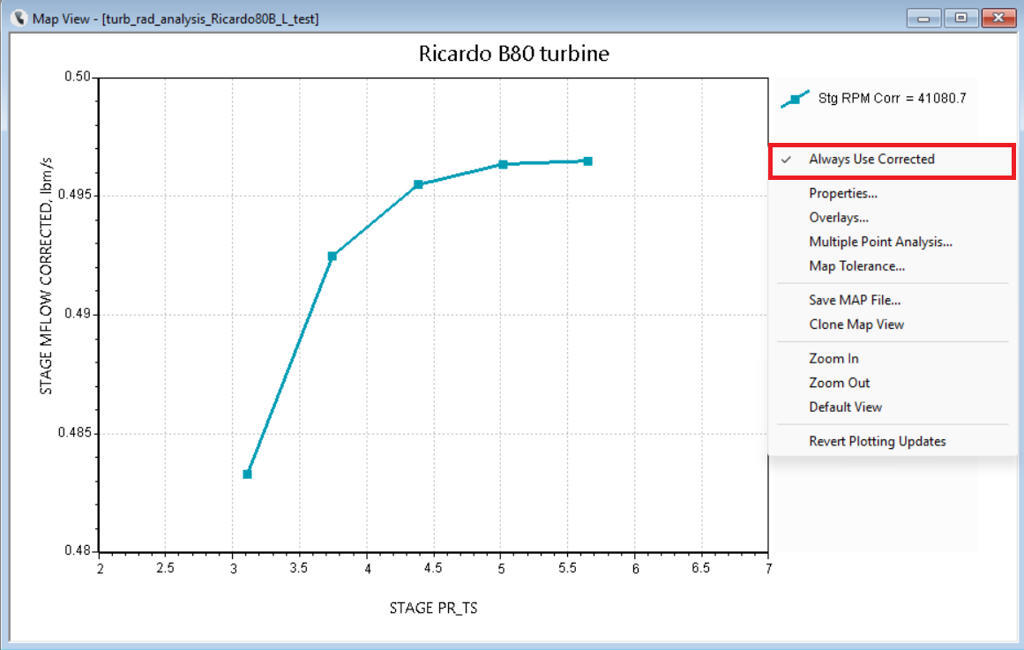
To enable the design and analysis of turbines experiencing a range of operating conditions, the Always Use Corrected option lets users view performance maps corrected to standard conditions. When selected, this persistent setting will plot mass flow and rpm corrected to a standard day for all applicable performance maps. This setting can be turned on and off at any time using the right click menu. This functionality is replicated from COMPAL 2025.1 release updates.
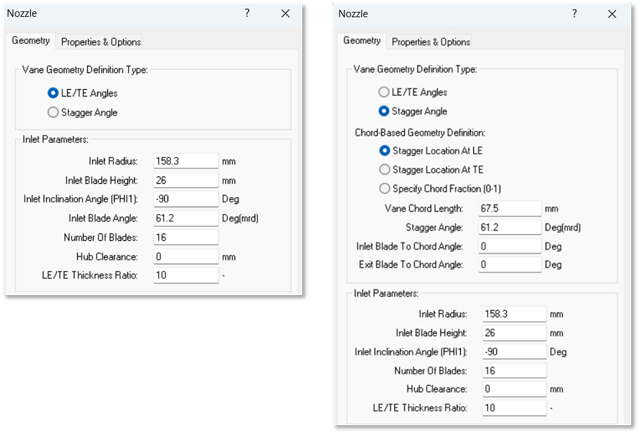
2025.2 rolls out updates to dialogs within RITAL that condense properties and options tabs to better dynamically indicate dependent fields based on selections.
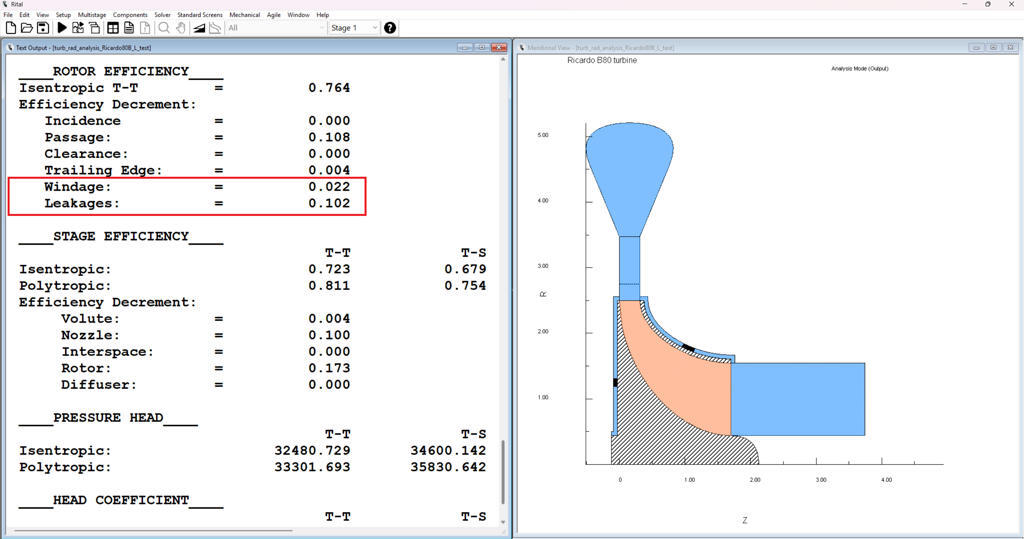
 RTP-C Windage
Continuing updates to our RTP-C solver, 2025.2 incorporates windage calculations to better account for the effects of secondary flows.
See further updates shared by our radial meanline programs.
Ansys CFX is now available as a CFD Solver to be used in an optimization.
Please look forward to a future webinar utilizing the CFX CFD solver.
ADS Code Leo is now available as a CFD Solver to be used in an optimization.
Please see the webinar for GPU powered intelligent aero optimization.
Updates allow the same project to be run under different approaches without losing previous solution results.
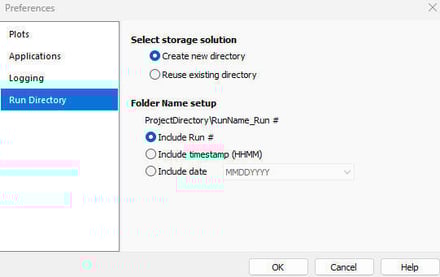
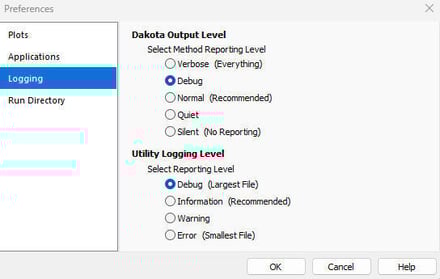
Controls added for adjusting the levels of reporting during the run.
Consolidated and updated utility scripts for increased versatility with file formats used externally. Published supporting documentation for users with in-house or third-party solutions.
A colorful splash screen greets you during application launch.
Revised buttons on the main toolbar are larger and color-consistent. A new button toggles opens/closes the Python console window and a second addition will Refresh Results. There is no longer a separate Advanced toolbar.

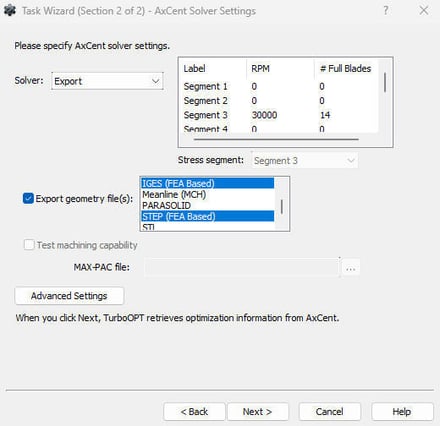
Two FEA-based file types can now be exported during AxCent tasks: IGES and STEP.
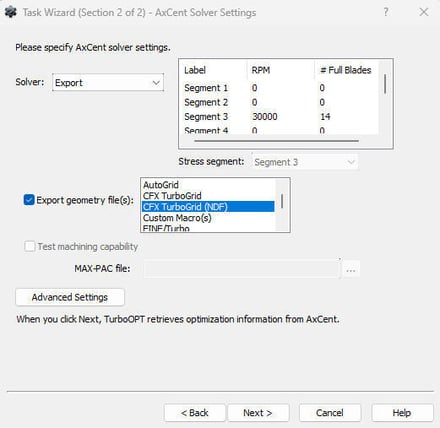
The NDF file format for CFX TurboGrid can now be exported during AxCent tasks.
Streamline the multi-task setup process. The simplified process for typical or advanced setup extends from the wizard to the layout and mode options in the main application. Sub-blocks are no longer used.
New project files will be saved during the wizard in the project directory of the user’s choice. The design input file for each task is copied to this location automatically.


